If you run a small business, your cell phone probably already doubles as your office phone. You return calls from the parking lot, text a vendor between appointments, and hand out your personal number because it's easier than missing a customer. It works until it doesn't: customers call you at 10 PM, you can't tell a business call from a personal one, and when an employee leaves, your customers still have their personal number.
There's a cleaner way. With a cloud phone system like RingCentral, your business number lives in an app on your phone. You get the convenience of your cell without giving up your privacy or your professional image.
What "Business Number on Your Cell" Actually Means
A cloud phone system runs your business lines over the internet instead of old copper phone lines. Your main number, extensions, and voicemail live in the cloud, so they can ring on whatever devices you choose: a desk phone, a computer, or the RingCentral app on your smartphone.
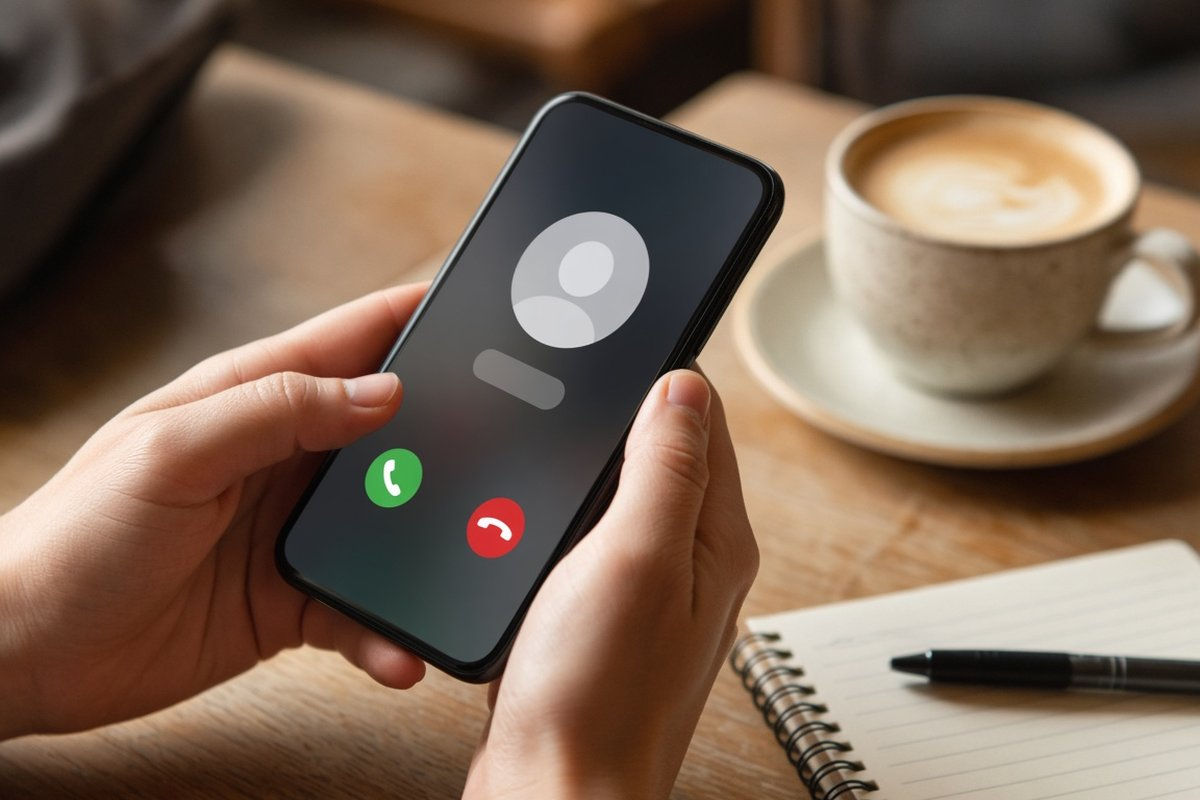
When you call a customer from the app, they see your business number on caller ID, not your personal cell. When a customer calls your business, the call can ring in the app wherever you are. Your personal number stays personal.
One phone, two identities
You don't need a second device. The RingCentral app sits on the phone you already carry, next to your personal contacts and texts. Work calls come in through the app, personal calls come in through your regular dialer, and you always know which is which.
Why Small Businesses Make the Switch
You stop handing out your personal cell
Once customers have your personal number, it's hard to take back. Routing everything through your business number means customers, vendors, and patients reach the business, not you personally.
You can work from anywhere
Owners and managers rarely sit at one desk all day. A restaurant owner might be at the supplier in the morning and on the floor at night. A practice manager might split time between two locations. With the app, the business line goes where you go, over Wi-Fi or your cellular data.

Your team stays reachable without sharing personal numbers
Each team member can have their own extension in the app. Customers get a professional experience, and when someone leaves the company, their access is removed and the business number stays with the business.
Business hours that actually mean something
Cloud phone systems let you set rules for when calls ring through and when they go to voicemail or another team member. You can protect your evenings and weekends without missing anything important.
How to Get Started With the RingCentral App
Here's what the setup usually looks like once your business is on RingCentral:
- Download the app. Get the RingCentral app from the Apple App Store or Google Play.
- Sign in with your business account. Your admin (or your RingCentral Partner) sends you login details for your extension.
- Allow notifications and microphone access. This lets incoming business calls ring on your phone like a normal call.
- Set your caller ID. Choose your main business number or your direct line so outgoing calls show the business, not your cell.
- Set your hours and call handling. Decide what happens to calls after hours: voicemail, another extension, or a different number.
- Make a test call. Call your business number from another phone and confirm it rings in the app.
Menu names can change between app versions, so if a setting isn't where you expect, your partner can walk you through it.
Tips for Using Your Business Line on Mobile
- Use Wi-Fi when you can. A strong Wi-Fi connection usually gives the clearest calls. On the road, the app uses cellular data.
- Set a status. Let your team know when you're available, busy, or off the clock.
- Keep voicemail professional. Record a business greeting in the app so callers know they've reached the business.
- Move calls between devices. If you start a call on your desk phone and need to leave, RingCentral lets you move an active call to your mobile app, and back again.
- Use business texting. Many customers prefer a quick text. Texting from your business number keeps those conversations off your personal phone.
Is This Right for Your Business?
If your team uses personal cell phones for work, works across more than one location, or spends a lot of time away from a desk, putting your business number on your cell is one of the simplest upgrades you can make. It's especially helpful for dental offices and medical practices, restaurants, and service businesses where the owner is always on the move.
Get Your Business Line on Your Cell, the Right Way
1-800GetConnected is a RingCentral Partner. We help businesses with 5 or more lines move to RingCentral, set up the mobile app for every team member, and configure call handling so the right calls reach the right people. Call us at (877) 849-9995 for a free consultation, and we'll walk you through what a RingCentral setup could look like for your business.
1-800GetConnected.com is a RingCentral Partner.
Talk to 1-800GetConnected
Call (877) 849-9995 or request a free quote for your business.