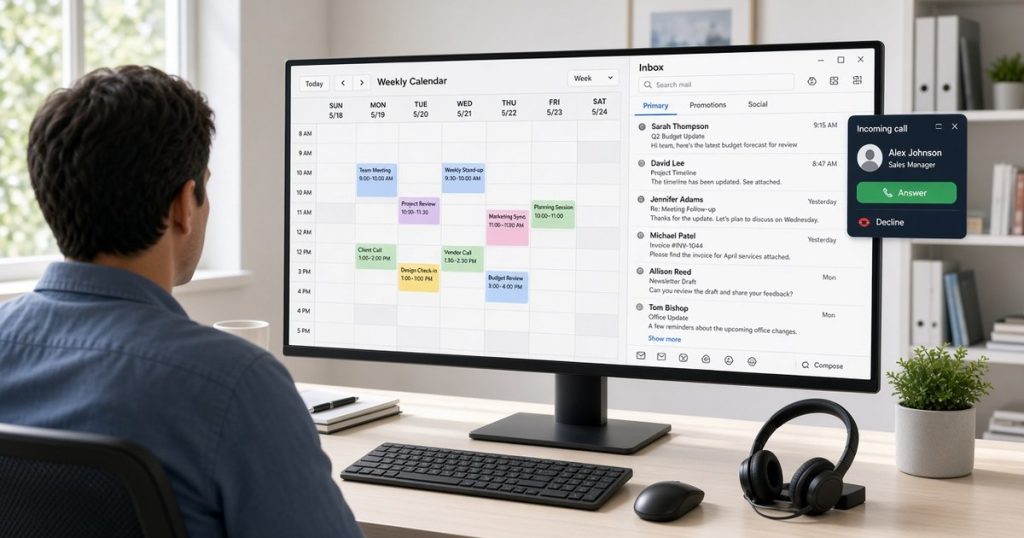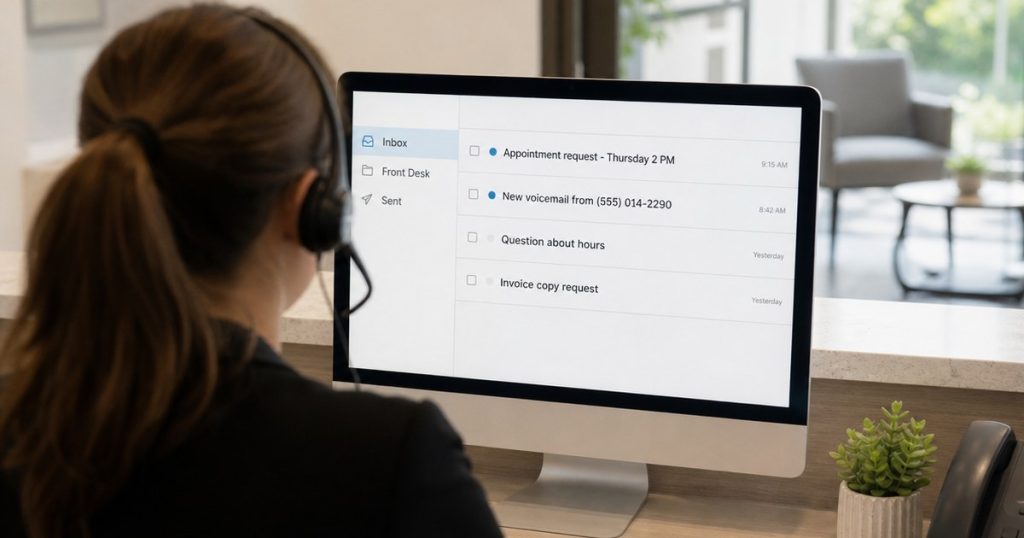
Most small businesses have one: the work group text. It started as a quick way to reach everyone, and now it holds shift swaps, delivery updates, and customer questions. It lives on everyone’s personal phone, mixed in with family chats and spam. When someone new joins, they miss months of history. When someone leaves, they keep it.
There’s a better place for that conversation. If your business uses RingCentral for phones, the same app includes team messaging. Here’s how to move your staff chatter off personal group texts and into the RingCentral team messaging app, using the phone your team already carries.
The Problem with Personal Group Texts for Work
Group texts are easy to start, but they don’t hold up as a business tool.
- Personal numbers are exposed. Everyone in the thread can see everyone else’s cell number, including staff who would rather keep it private.
- Work and life get mixed. A work update gets buried between personal messages, and it’s easy to text the wrong thread.
- Nothing is organized. One long thread covers every topic and team. Finding last week’s answer means scrolling.
- You don’t control it. When an employee leaves, the business can’t remove them from a thread on their personal phone, and the history goes with them.
- Files get lost. Photos and documents shared by text end up scattered across personal photo galleries.
Set Up Channels by Location or Team
In the RingCentral app, conversations happen in teams, often called channels. Instead of one thread for everything, you create a space for each group or topic.
A simple starting layout
- One channel per location, such as Main Street or Downtown, for local updates and coverage.
- One channel per team, such as front desk, service, or kitchen, for day-to-day work.
- An all-staff channel for announcements everyone needs to see.
Keep the list short at first and add channels as needed. Because the business manages the account, you decide who is in each channel, and when someone leaves the company, removing their RingCentral user removes their access.
Share Files and Photos in One Place
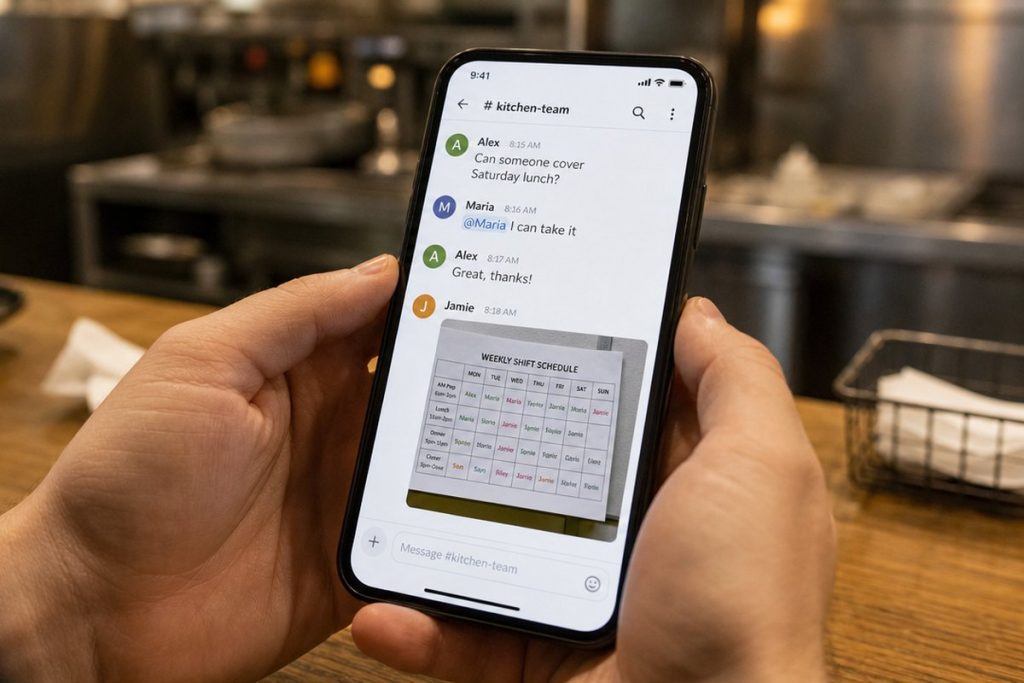
Your team can share photos, PDFs, and other files right in the chat. A technician can post a photo of a finished install, a manager can drop the new schedule into the team channel, and a front desk lead can share an updated procedure.
Files stay with the conversation where they were shared, so the next person who needs the schedule knows where to look. No more “Can someone resend that picture?”
Mentions and Notifications
Not every message needs everyone’s attention. With @mentions, you can call out a specific person so they know a message is for them, even in a busy channel.
Each person can also adjust their own notifications. A manager might want alerts for every message in their location channel, while a part-time employee might only want alerts when they’re mentioned. Settings like status and do-not-disturb help staff step away after their shift without losing messages, because everything is waiting in the app when they come back.
Jump from a Chat into a Call
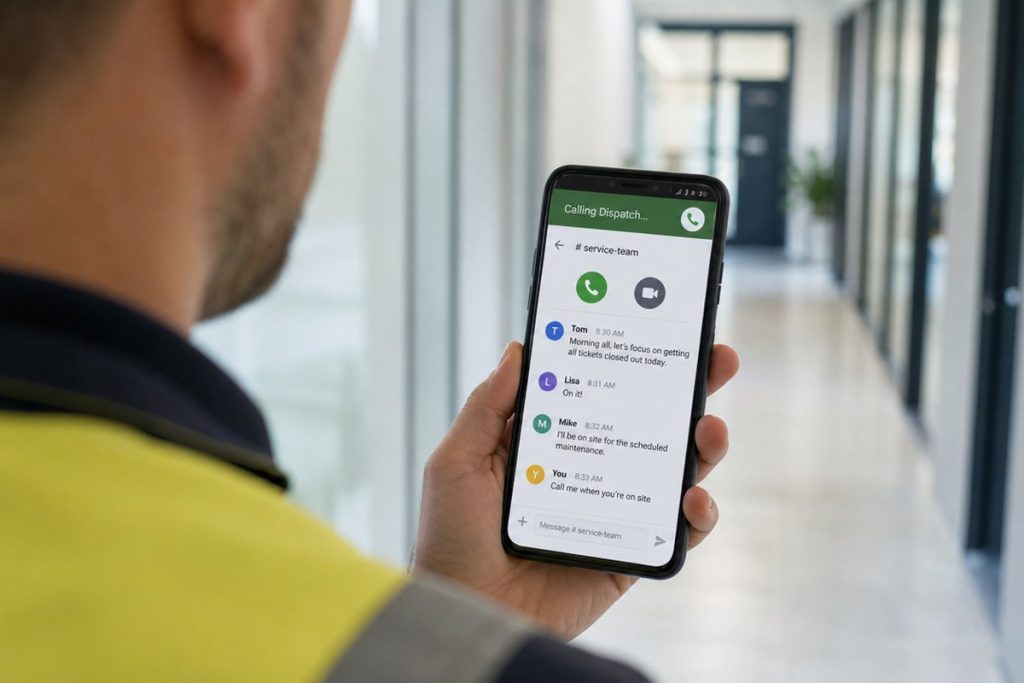
Some conversations are faster by voice. In the RingCentral app, messaging, phone, and video live together. When a chat gets complicated, start a call or video meeting from the conversation instead of switching apps or looking up a number.
And because RingCentral calls use your business number, staff aren’t handing out their personal cell numbers to reach each other or customers. Work stays in the work app.
How to Make the Switch
Moving a team off group texts works best with a clear plan:
- Install the RingCentral app on each team member’s phone and sign them in with their work account.
- Create your starter channels before you announce the change.
- Set a start date and post one last message in the old group text pointing everyone to the app.
- Lead by example. When managers post updates only in the app, the team follows.
Once people see that schedules, photos, and answers are easier to find, most won’t want to go back.
Keep Your Team Connected in One App
Keep your team connected in one app. 1-800GetConnected is a RingCentral Partner. We help businesses with 5 or more lines set up RingCentral, including the mobile app, team messaging, and call handling, so your staff can talk, text, and meet from one place. Schedule a free 30-minute call to talk through what a setup could look like for your business.
1-800getconnected.com is a RingCentral Partner.
Talk to 1-800GetConnected
Book a free 30-minute call or request a free quote for your business.